The plan
Before you arrive: a GitHub account, a Discord account, and VS Code.
Before Tuesday morning: your own copy of the workshop repository, your API key added to GitHub, your codespace built once, and VS Code connected to it.
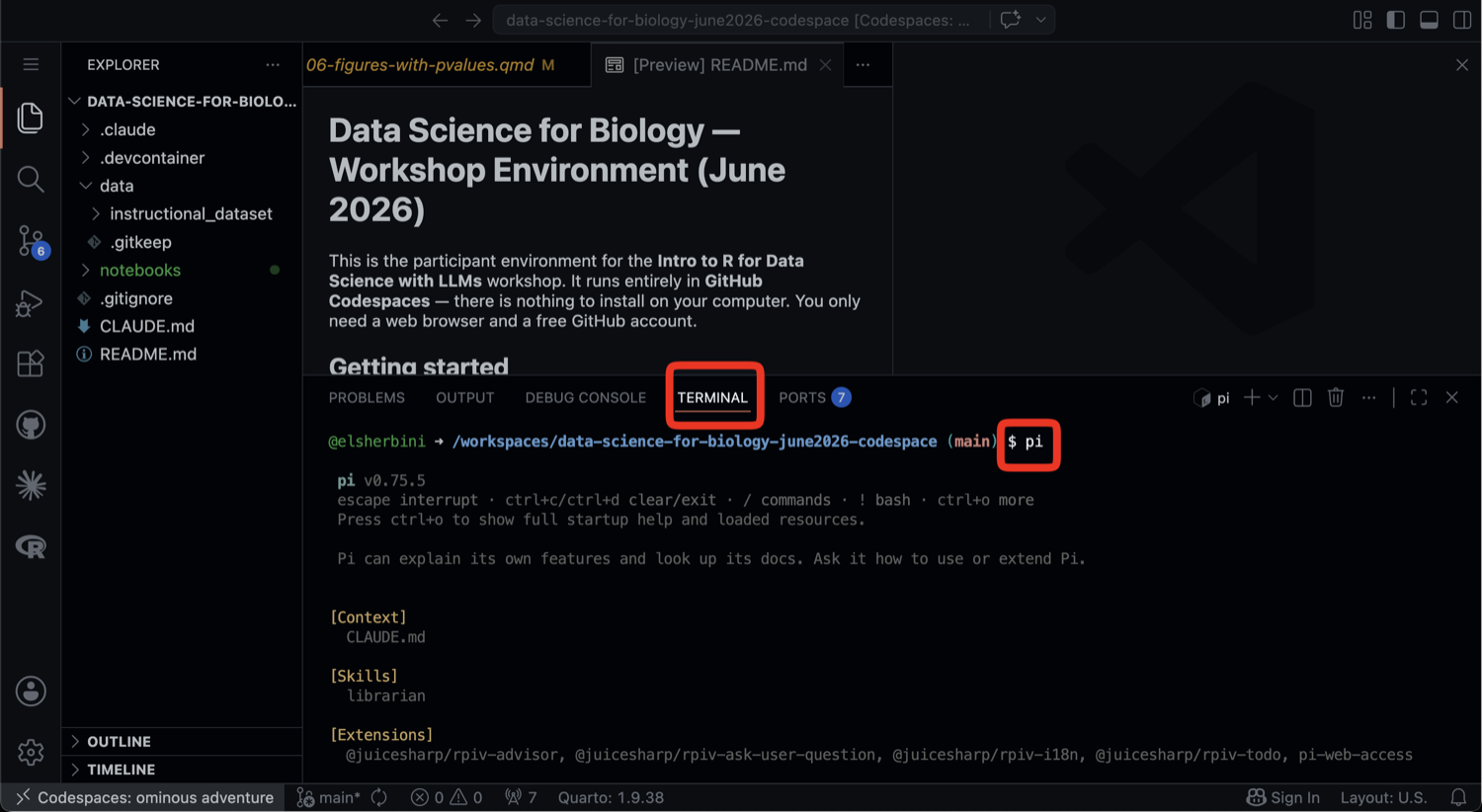
During the workshop, together: Pi.
Before Tuesday morning
Do these in order: the key goes into GitHub before you launch the codespace.
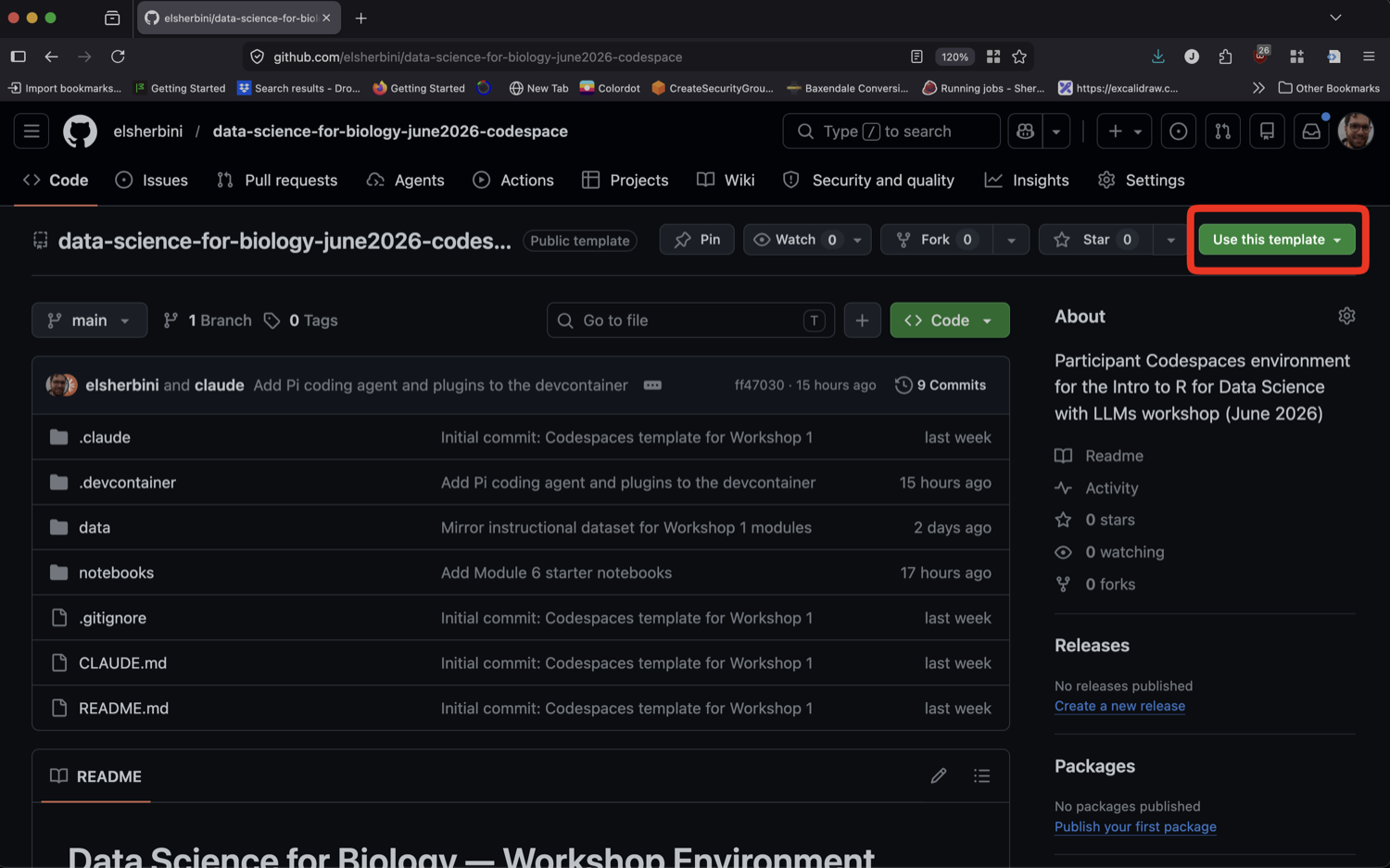
Step 5: Create a new repository
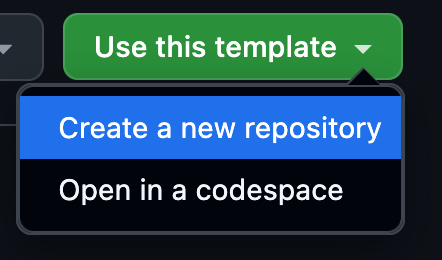
In the dropdown, choose “Create a new repository”.
![Use this template dropdown with 'Create a new repository' highlighted]()
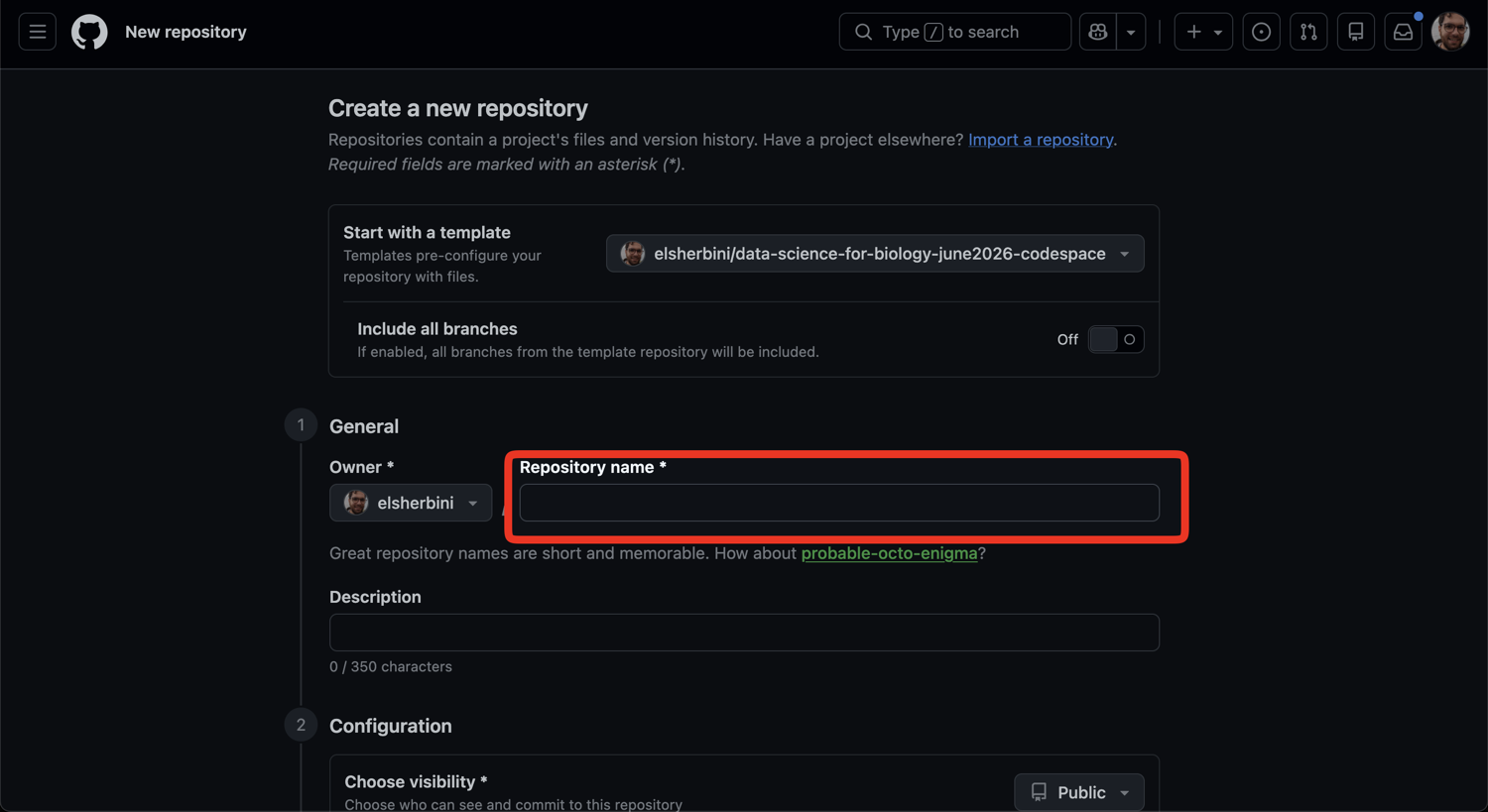
Step 6: Name your repository
Give it a name (for example, multiomics-2026) and click “Create repository”.
Don’t launch a codespace yet. Get your key first.
![New repository form with the Repository name field highlighted]()
Step 7: Claim your key with /claim
Ask a TA or instructor for the Participant role.
Then type /claim in any channel. The reply is visible only to you and contains your API key. Copy it.
Later: /key shows it again, /usage shows today’s spend.
Step 8: Open Codespaces settings
Click this link: your Codespaces settings page. Scroll to “Codespace user secrets” and click “New secret”.
No link? Profile picture (top right) → Settings → Codespaces. Not the repository’s Settings tab.
![Codespace user secrets section with the New secret button highlighted]()
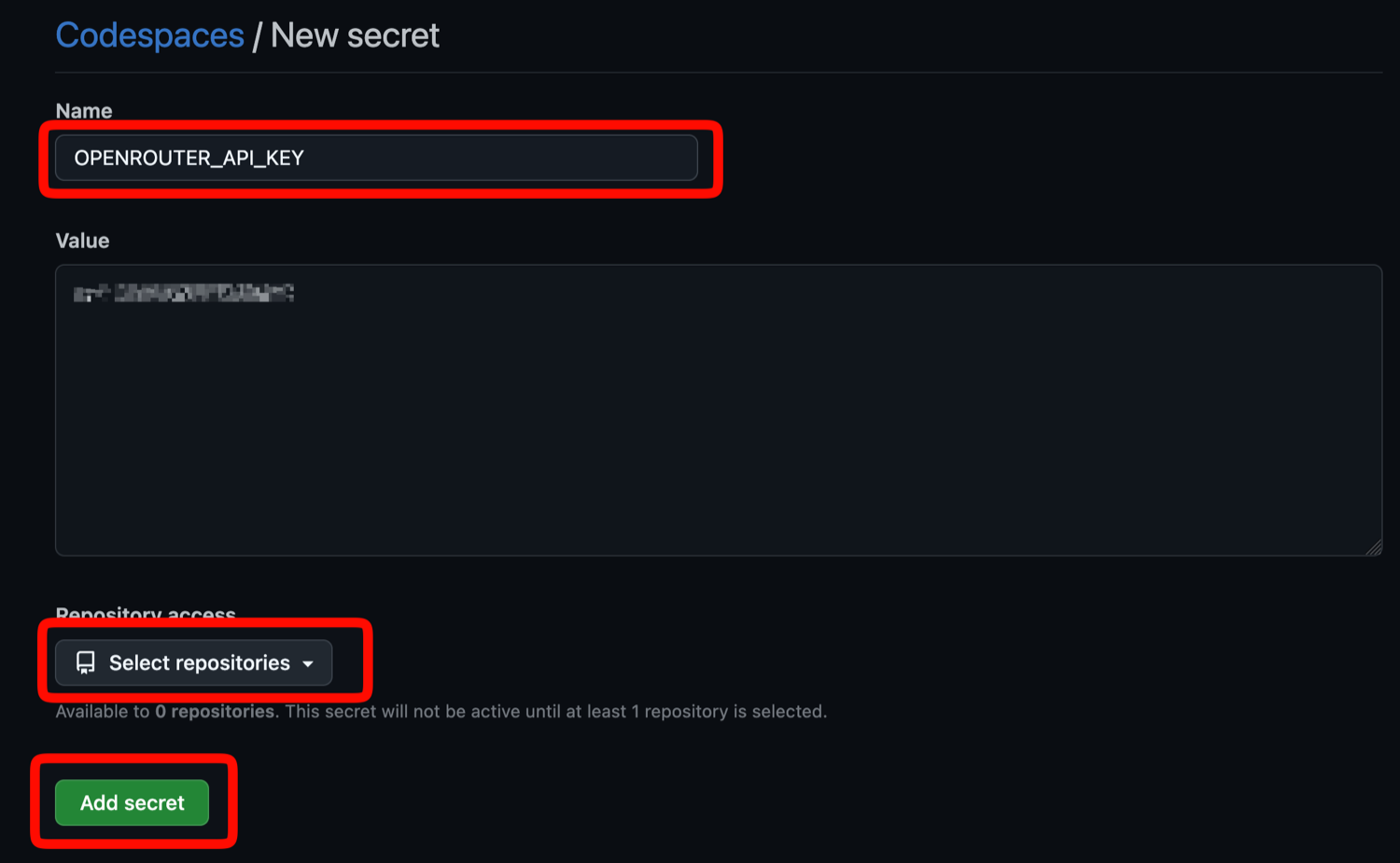
Step 9: Save the secret
- Name:
OPENROUTER_API_KEY (exactly this)
- Value: paste your key
- Repository access: select the repo from step 6
- Click “Add secret”
![New secret form with Name, Repository access, and Add secret highlighted]()
Came to the June workshop?
You already have an OPENROUTER_API_KEY secret. Don’t make a new one: GitHub won’t allow two with the same name.
On your Codespaces settings page, click “Update” next to OPENROUTER_API_KEY:
- Replace the value with your new key from Discord
- Under Repository access, add the repo from step 6
- Click “Save changes”
Step 10: Launch a codespace
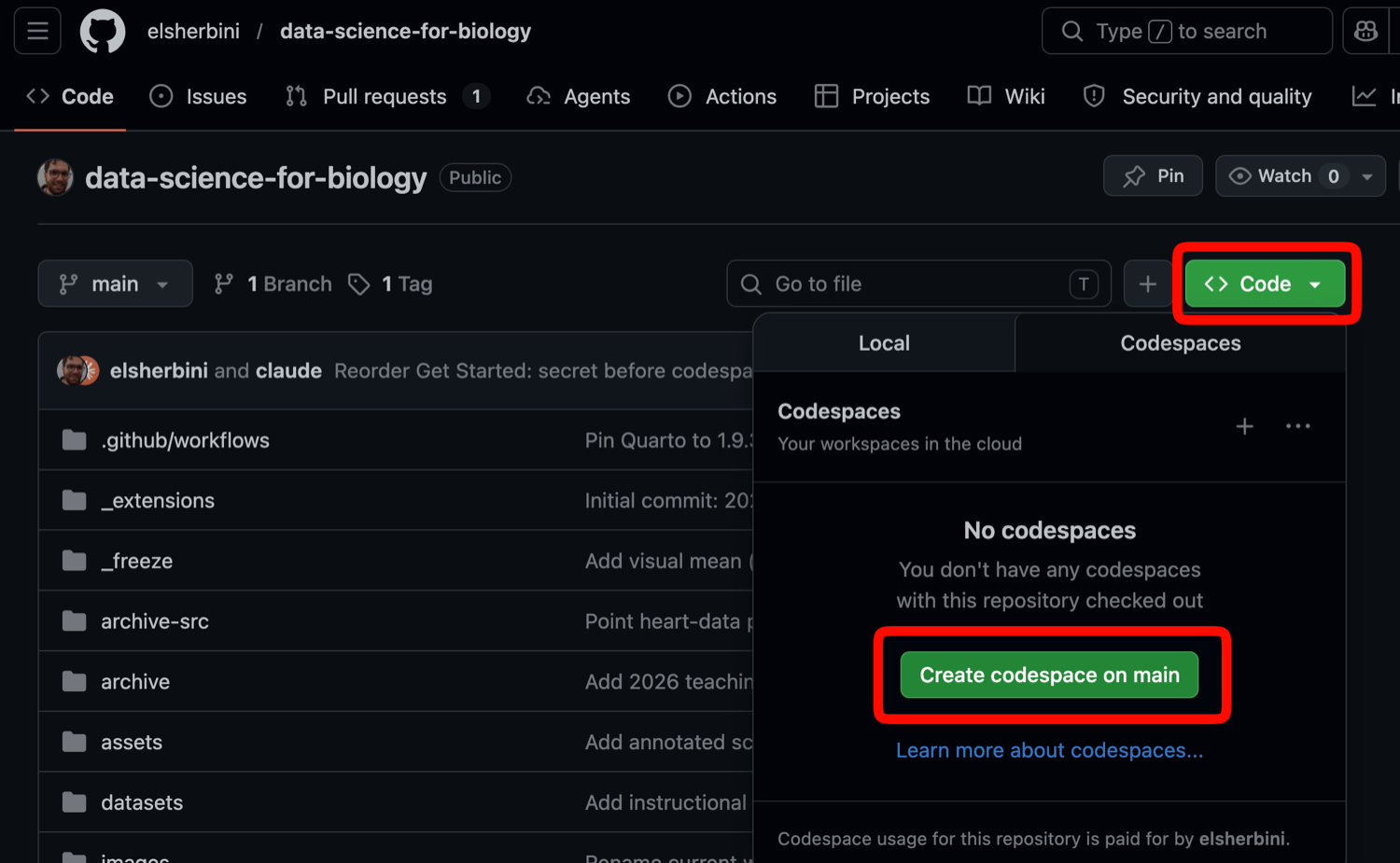
On your new repo: “Code” → “Codespaces” tab → “Create codespace on main”.
The first build takes 10 minutes or more. Let it finish.
![Repository page with the Code button and Create codespace on main button highlighted in the Codespaces tab]()
Step 11: Check that R works
- Terminal → New Terminal
- Type
R, press Enter
- Type
library(tidyverse), press Enter
A list of packages and no Error means you’re set. Type q("no") to leave R.
Step 12: Connect from VS Code
From now on, open the codespace in the VS Code app instead of the browser.
- In VS Code, click the bottom-left corner icon (two small arrows)
- “Connect to Codespace” (install the extension if asked)
- Sign in to GitHub when asked, then click your codespace
Connect, never Create. “Create New Codespace” gives you a new, empty one.
Connected when the bottom-left corner shows Codespaces: and its name.
App won’t connect?
Use the browser instead. At github.com/codespaces: ⋯ → “Open in” → “Open in browser”.
Use Chrome, Edge or Firefox, and allow clipboard access when asked.